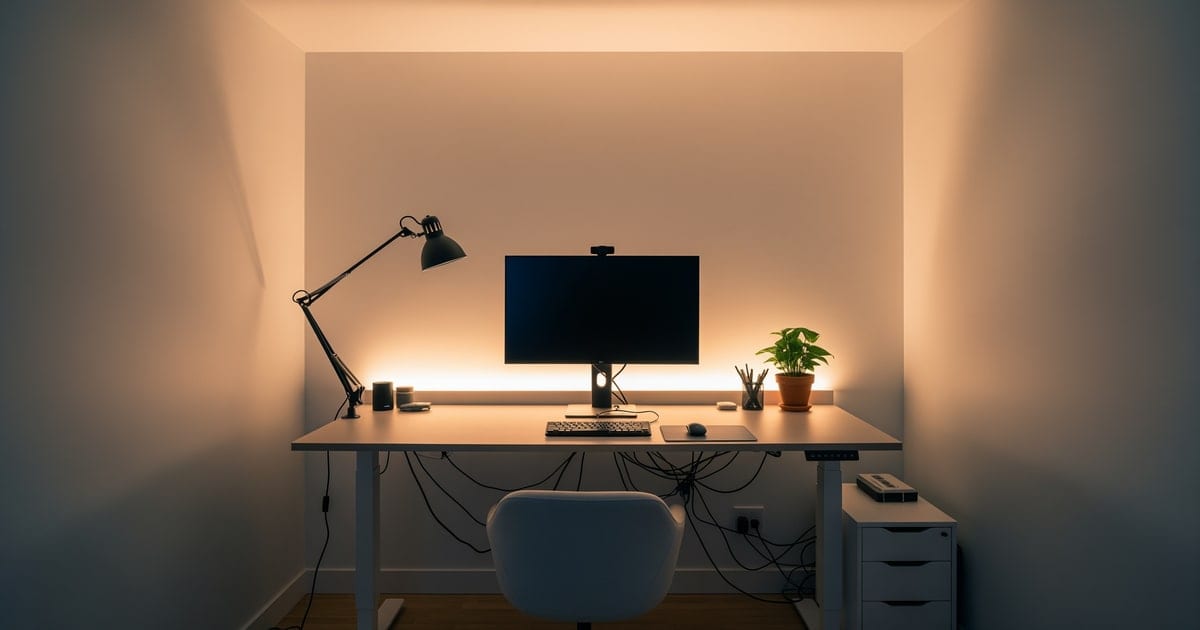
AI home office design works by uploading a photo of the office, locking the window and outlet positions, and previewing desk orientation, chair clearance, and storage placement before purchase. Most home offices look fine in photos and feel terrible by 3 p.m. The desk faces the wrong way, the camera makes you look like a silhouette, the chair was bought for looks instead of lumbar, and the cable mess defeats the design before it starts. My opinion is blunt: home offices are an ergonomic and lighting problem first, a styling problem second. AI home office design earns its keep by previewing both at once — desk orientation, light direction, video-call backdrop, and traffic lane — before you spend a dollar.
What AI tools work best for designing a home office?
The best AI home office design tool works from a photo of your real room, respects the existing window placement, and lets you test specific desk orientations, lighting setups, and storage configurations on top of that photo. Re-Design is built for this pattern: upload one photo, prompt for "desk perpendicular to the window," "bookcase as the video-call backdrop behind the chair," "warm 3000K bulb in a focused desk lamp," and the tool generates a render that respects your room. Free AI room generators are good for inspiration; they are weak at the kind of constraint-aware preview a home office needs. Pick a tool that gets you closer to a real working layout, not a mood board.
What AI home office design does well
Desk orientation is the single biggest decision and the easiest to preview. A desk facing a wall is calmer but flatter for video calls; a desk facing the room is more social but exposes everything behind the chair. A desk perpendicular to the window gives the best natural light on the face without backlight glare. AI shows you all three from your room's actual geometry. The right answer is almost always perpendicular to the window — but seeing it in your room is the fastest way to commit.
Lighting placement is where most home offices fail. Overhead light alone produces shadows on the keyboard and across the face. A real desk lamp at 400 to 600 lumens, 2700–3000K, with an articulating arm, fixes the work-surface problem. A fill light at 60 to 75 percent of the window brightness fixes the video-call problem. AI previews show you what the screen and the face will actually look like, not just the room. If the office gets very little daylight, run the moves from home office lighting for focus through the preview first, then add styling.
Video-call backdrop is the third-strongest preview. A blank wall is dead; a styled bookcase is alive. AI can show you a 4-shelf bookcase styled with books, plants, art, and one sculptural object as your call backdrop. Test that backdrop with the camera angle in mind — usually mounted on the laptop or just above the monitor — so the backdrop frames you instead of competing with you.
Storage is the part most home-office tutorials skip. AI is good at previewing tall versus wide shelving, file drawers built into the desk versus a separate filing cabinet, and the trade-off between closed cabinet storage and open shelving. The right answer depends on whether you do paper-heavy work or screen-heavy work. AI lets you see both layouts in your actual room.
Chair color and finish are easy to fake; chair quality is invisible. AI will render a beautiful task chair, but you still have to sit in one in person before buying. Use the preview for color and finish coordination with the desk and walls; trust your back, not the render, for the actual purchase.
Test this on your own room photo with ReDesign before you choose the final direction; keep the doorway, walls, windows, main furniture, lighting, and awkward fixed features visible so the preview solves the room you actually have.
What AI home office design does badly
Cable management is invisible in renders. AI shows clean cordless desks; your real desk has six cables. Plan a real cord channel, a power strip mounted under the desk, and a basket for the laptop charger before the room is "finished." The render is aspirational; the cables are reality.
Outlet placement and wall switches are usually ignored by the AI. If your desk needs to live near an outlet, that constraint matters more than aesthetic preference. Always verify outlet positions in your real room before committing to a desk position, regardless of what the render suggests.
Camera position is rarely calculated by AI. The render may show a beautiful desk facing a window with the laptop closed; in real use, you would be a silhouette. Always think about where the laptop or external camera will sit when previewing, and run a version with the camera angle visualized.
Ergonomics are invisible. AI will show you a 30-inch standing desk, a 26-inch sitting desk, or a beautiful standing-desk-and-treadmill setup, but the right desk height depends on your body — usually 28 to 30 inches sitting, with your elbows at 90 degrees, and the monitor top at eye height. Confirm those numbers before buying, not after.
Acoustics are completely missing. AI cannot show you that hardwood floors plus a glass desk plus a bookcase plus a metal task chair will create an echoey video-call disaster. Plan for a rug, soft curtains, and at least one upholstered piece before signing off on a hard-edged render.
How to use Re-Design for a home office preview
Be specific about ergonomics, lighting, and the video-call backdrop. The home office is a multivariable problem, and vague prompts produce showroom renders that won't work all day.
Example: "Keep the existing window on the long wall, the door, and the wood floor. Add a 60 inch walnut desk perpendicular to the window, with the long axis facing the room. Place a 5-shelf walnut bookcase against the wall behind the desk chair, styled with books, two plants, and one ceramic sculpture, to serve as the video-call backdrop. Add an articulating desk lamp with a 3000K bulb at the front-left corner of the desk. Add a 6x9 wool rug under the desk. Paint the walls in warm white. Mount a small wall-art group of three matted prints on the opposite wall above eye height. Include cord management under the desk."
Then run a second version with the desk facing the wall and a bookcase on the side wall. The comparison will show whether the perpendicular-to-window orientation is doing the work or whether the bookcase backdrop is the bigger lever.
For a home office that doubles as a guest room or sits inside another room, run the preview alongside the moves in home office in living room. Zoning matters more than styling when two purposes share one footprint.
Common AI home office design mistakes
- Choosing desk orientation based on the render instead of camera angle and outlet position.
- Skipping the desk lamp in the prompt and ending up with a dim screen surface.
- Ignoring acoustics; rendering a hard-floor, glass-desk room with no soft elements.
- Letting the AI hide the cables; real wires will appear on day one.
- Using a chair color match as the deciding factor instead of ergonomics.
- Running a single render instead of comparing two desk orientations.
- Forgetting the video-call backdrop is a separate styling layer, not a styling afterthought.
Use AI design to preview your home office before you buy
Home offices are the room most worth previewing because the wrong choices have daily consequences. Photograph the room from the doorway with the window in the frame. Prompt for a specific desk orientation, a specific lamp temperature, a specific backdrop. Run two versions, pick the better one, and walk into the furniture conversation knowing exactly what you need.
Frequently Asked Questions
Can AI orient my desk for the best video-call lighting?
Yes — AI previews desk orientation against the daylight window so the camera frames evenly lit rather than backlit; usually desk perpendicular to the window beats desk against the window. Use the room photo to compare the visible layout and fixed constraints before committing, because door swings, windows, outlets, storage reach, circulation, and existing furniture decide whether the idea survives daily use.
How does AI handle a small home office under 80 square feet?
AI previews a single-wall layout with a desk against the long wall, a 24-30 inch chair clearance, and one tall storage piece on the short wall; double-desk and L-shape layouts often will not fit. Keep the preview honest by leaving the problem area visible in the frame, then compare one conservative version against one bolder version before you buy lighting, paint, furniture, or storage.
Can AI preview a shared office for two people?
Yes — preview a face-to-face desk layout against the long wall (each person gets a 60-inch desk) or a parallel-desk layout against one wall with a 30-inch aisle behind each chair. Check the result against ordinary movement first: drawer clearance, chair pullout, walkway width, glare, switch access, and sightlines matter more than a perfect catalog angle.
What about an office that doubles as a guest room?
Preview a Murphy bed or daybed configuration against one wall and a desk against the opposite wall; AI shows the bed-down footprint so you can confirm the desk chair still has 36 inches of clearance. Use the image to narrow priorities and measurements before ordering anything custom; final purchases still need real dimensions, outlet locations, installation limits, and product clearances.
Should AI design happen before or after picking the desk?
Run AI first to confirm desk size and orientation against the window and outlets, then shop for a desk that matches the previewed footprint; reversing the order often forces a return. If the preview invents architecture or hides the awkward feature you need solved, rerun it with stricter instructions so the result remains tied to your actual room.
> Try this: Ready to see this on your own room? Open ReDesign and run the preview.
Three transformations to try
1. Desk perpendicular to window for even call lighting 2. Small office single-wall layout with tall storage 3. Office-guest room with Murphy bed and desk


