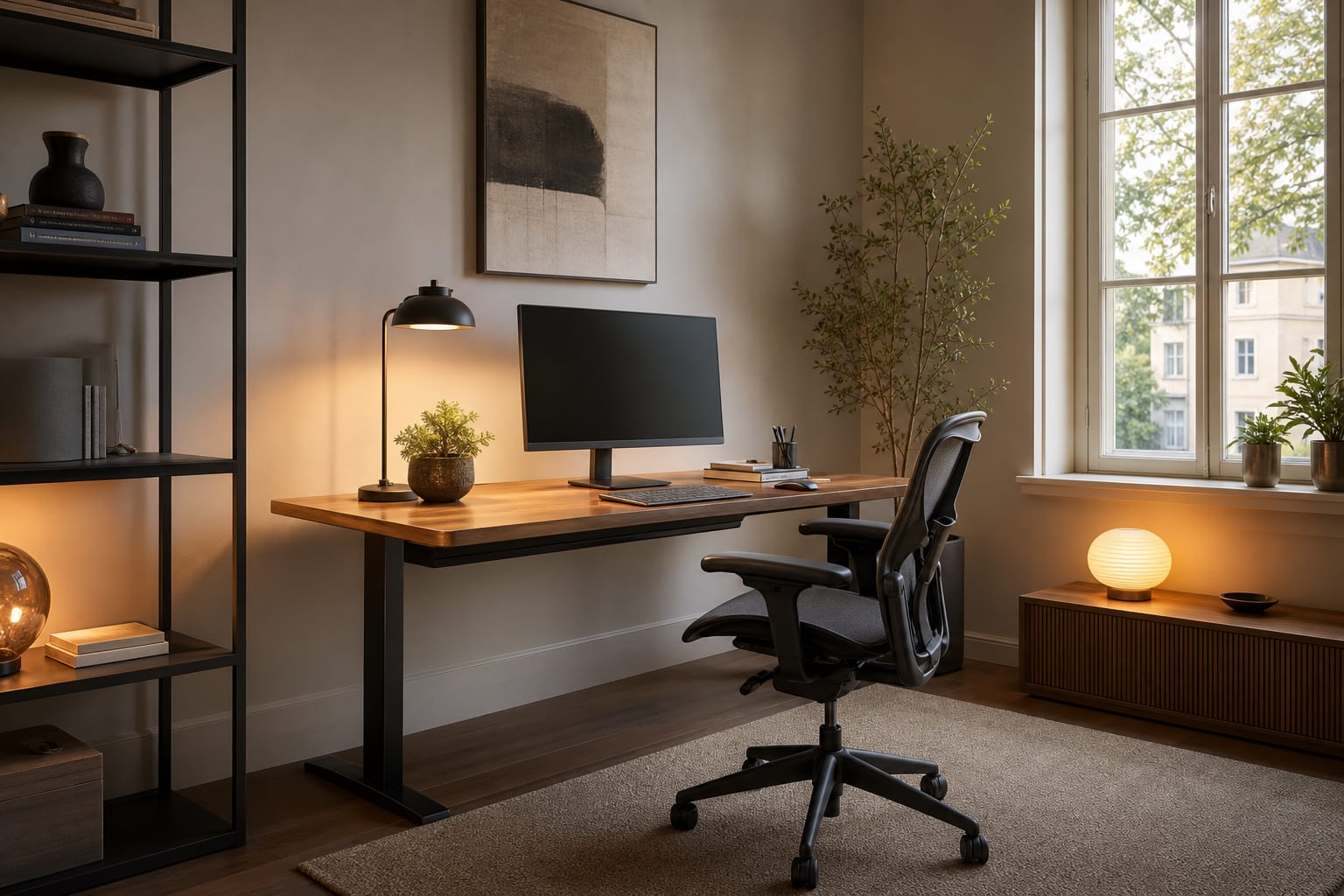
Home office cable management comes down to four moves: an under-desk tray for the power strip, a wall or leg raceway for vertical runs, hook-and-loop ties for cables that travel together, and one labeled, reachable outlet per device. Skip the all-day zip-tie project — this system takes under 90 minutes and gets 90 percent of the visual result. Do not buy a prettier desk until the cords are controlled; a great desk with a dangling power strip still looks unfinished.
How do you hide cables in a home office?
Start at the outlet, not the monitor. If the outlet sits behind the desk, use a short flat extension and mount a surge protector to the desk's underside or modesty panel, leaving 3"–4" of clearance from any drawer so plugs can turn freely.
For a sit-stand desk, give every cable a vertical travel path. Raise the desk fully, then leave 6"–8" of slack before fastening anything — organizing cords at low height risks yanking a plug loose on the first standing adjustment.
Separate cables by behavior. Monitor, webcam, and keyboard cords can share one sleeve since they move together. Chargers, phone cords, and headphones need frequent access, so they belong in clips or a shallow drawer rather than one thick bundled snake.
Which cable route should your desk use?
The right setup matches your desk shape and outlet location — a wall-facing desk hides more than a floating one, and a single-outlet rental needs a different plan than a built-in office with floor power.
| Route | Best for | Size/spec | Notes |
|---|---|---|---|
| Under-desk tray | Power strip + slack, most desks | 16"–24" long, mounted 2"–3" back from front edge | Use a clamp-on version for thin desktops |
| Cable sleeve | Horizontal runs (monitor, dock, speakers) | 1"–1.5" diameter | Black disappears under dark desks; gray/white suits pale tops |
| Wall or leg raceway | Visible vertical drops to an outlet | 1/2"–3/4" wide (wider behind monitors/printers) | Test adhesive on a hidden 2" strip for 24 hours first |
| Grommet | Desks you own or can drill | 2" round (3" for docks/multiple USB) | Renters should use rear clips or clamp trays instead |
If the office is squeezed into a bedroom or alcove, pair the cord plan with compact home office layout advice — cable control is easier once the desk isn't fighting a door swing or walkway.
Test this on your own room photo with ReDesign — keep the doorway, walls, and main furniture visible so the preview solves the room you actually have.
What should stay accessible, and what should disappear?
Not every cord deserves equal hiding. A monitor cable can vanish for months; a phone charger cannot.
Route on the slow path (trays, sleeves, raceways): monitor power, display cable, desk lamp cord, speaker power, ethernet, docking leads. Label similar-looking cords near the plug to skip crawling under the desk during a meeting.
Route on the fast path (desktop edge, drawer, charging shelf): phone, tablet, camera, and headphone cables. Space adhesive clips 6"–8" apart along the back edge so cord heads don't fall behind the desk.
Lighting cords matter too — run the lamp cord through the same tray or leg channel instead of across the floor, and use warm 2700K–3000K bulbs for a calmer evening office. If glare is also an issue, see this guide to home office lighting for focus before finalizing cord routes.
Printers and routers need their own rules: leave 18"–24" of knee clearance if a printer sits under the desk, and never bury a router in a closed cabinet — use a ventilated box instead.
Common home office cable management mistakes
- Hiding the power strip too well. Mount it where the switch and main plugs are visible from the chair side, not somewhere requiring a floor crawl.
- Over-bundling everything. Bundle by destination — screens together, chargers separate, lighting on its own path — and leave a 4"–6" service loop near the computer so ports aren't under tension.
- Letting cords cross the chair path. Any floor cable between outlet and chair gets kicked or rolled over; use a low-profile, foot-traffic-rated cord cover against a wall if a floor run is unavoidable.
- Trusting adhesive on any surface. Clean and dry the surface first, and use screw-in clips or clamps for heavier power bricks rather than loading a small adhesive clip.
- Sealing heat-producing equipment. Power bricks, docks, and routers need airflow — use a ventilated tray or open-back cabinet, not a sealed decorative box.
- Only checking the close-up view. Stand 6'–8' back and check the doorway and video-call angle for dangling cords or a glowing power strip on the floor.
In very small rooms, a clean floor line also makes the office feel wider. The same discipline used in small home office space ideas applies: protect the walking path and keep the wall plane calm.
Use AI design to preview your cable-free office before you stick anything down
Cord problems are spatial before they're decorative, so preview the fix before buying parts. Upload a straight-on photo of the desk wall and a doorway shot showing the outlet, desk legs, monitor, chair path, and floor together — leave the current cable pile visible since it's part of the real problem.
Test a few practical versions: an under-desk tray with wall raceway, a rear-mounted strip with leg channels, a floating router shelf, or a charging drawer. Keep the same desk, wall color, and outlet location so the image tests organization rather than inventing a new room.
The winning version should show exactly where the power strip sits, which cords bundle together, where the vertical drop happens, and which chargers stay reachable. If a preview only looks clean because it erased the printer or changed the outlet, treat it as a mood image, not an installation plan. Then turn the best version into a shopping list: tray length, raceway width, sleeve color, clip spacing, and grommet size.
Frequently Asked Questions
What is the easiest cable management upgrade for a desk?
A clamp-on under-desk cable tray holds the power strip and absorbs slack in about 10 minutes. Every dangling cable below the desk goes up into the tray, clearing the floor for chair rolling.
How do I hide cables running to the monitor?
Route monitor cables through a monitor arm channel or along the desk's back edge down a single hidden spine into the under-desk tray. One planned visible run beats five accidental ones.
Should I use zip ties or hook-and-loop?
Use hook-and-loop ties for bundles you adjust often and zip ties only for permanent runs you'll never touch. Zip-tying devices you reconfigure yearly just creates more work later.
How do I cable manage if the desk floats in the room?
Run a single power cord down one leg with a cable wrap, then let it drop about 6 inches above the floor to the outlet. Under-desk trays usually look worse on floating desks since the tray is visible from every angle.
Is wireless charging worth it for cable management?
Yes for phones and earbuds — a single charging pad removes 2–3 USB cables from the desktop. It's not yet practical for laptops, where wired charging still wins on speed.
> Try this: Ready to see this on your own room? Open ReDesign and run the preview.
Three transformations to try
1. Under-desk cable tray with bundled lines 2. Monitor arm with channel-routed cables 3. Floating desk with single-leg cable wrap