Planner5D's AI mode is worth using for quick room concepts, layout experiments, and a first pass before building a plan by hand. It is not the tool to trust alone for final furniture sizing, lighting placement, or rooms with awkward doors and tight clearances. This review covers where it helps, where it fails, and when another app saves time.
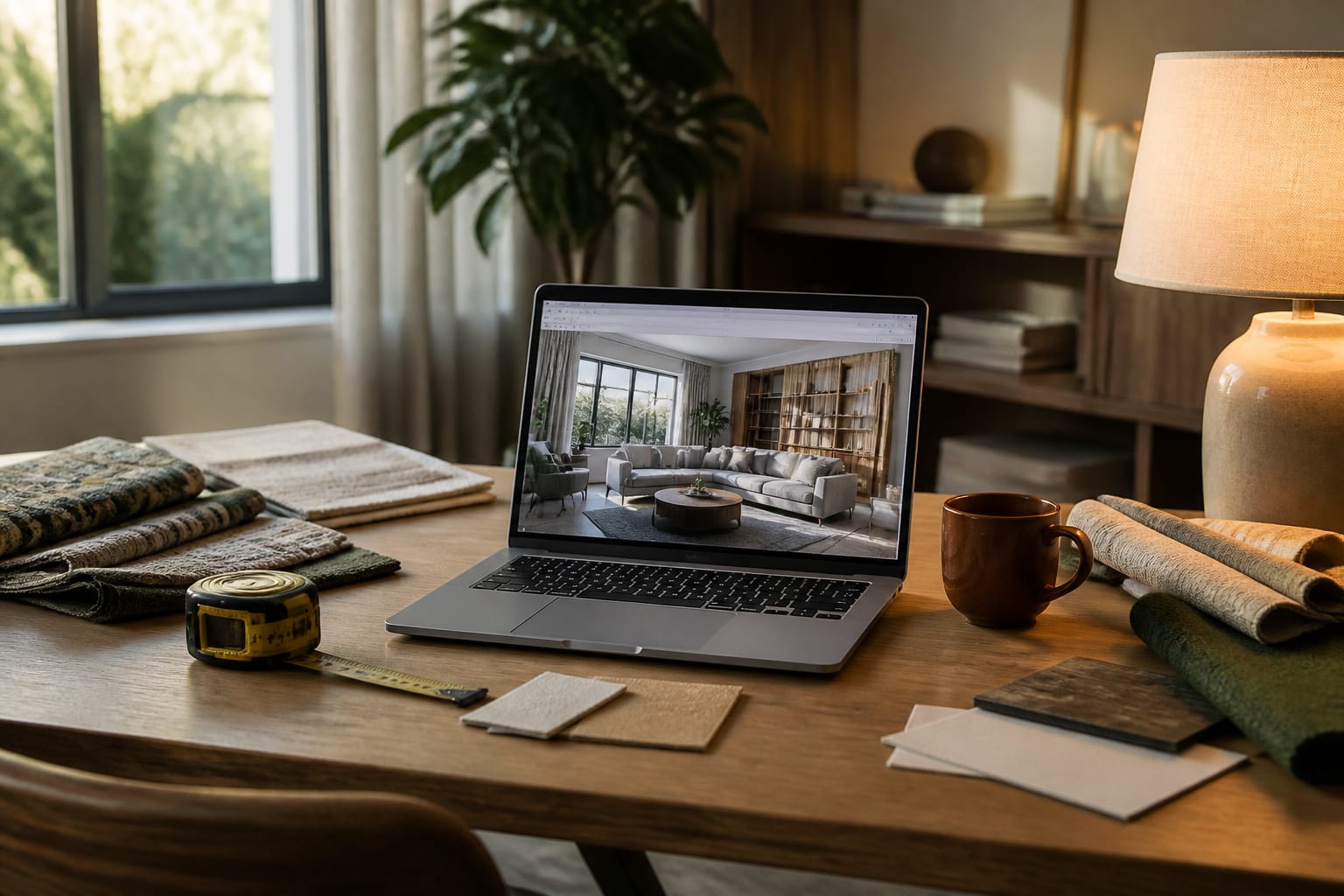
Is Planner5D's AI design mode worth using?
It's worth using if you want fast design options inside a planning environment, but it doesn't replace measuring and checking real furniture dimensions. Planner5D's core strength is bridging visual inspiration and a structured room model, not just generating a pretty image.
The platform is built around floor plans, furnishing spaces, and visualizing interiors, so its AI features shine when you're stuck at "what could this room become?" A small bedroom can turn into a calmer guest room, a plain living room can test warm minimalism or industrial style, and an empty studio can try a smarter furniture hierarchy.
Caution kicks in once the output looks finished. A generated room may show a perfect sectional and full-height curtains without proving the door opens or the rug is large enough. For a broader look at how photo-first tools behave, see the full interior AI app review.
Where Planner5D AI mode helps most
The mode is strongest for visual, medium-stakes questions: style direction, room identity, and how major furniture pieces relate. It's weaker for construction-grade decisions, like exact cabinetry depth or code-sensitive clearances.
Use it first for:
- Testing room identity before buying products. Ask for a compact guest office, calm primary bedroom, or family media room before comparing individual chairs.
- Comparing furniture hierarchy before the biggest purchase. A 90-inch sofa, 60-inch desk, or queen bed changes every path around it; leave about 30 inches for the main walkway.
- Exploring finishes as a group. Wall color, flooring tone, upholstery, and lighting temperature affect each other; a 2700K lamp plan reads very differently than a cool overhead fixture.
- Trying reversible changes first. Renters can test rugs, curtains, lamps, art, and freestanding storage before committing to paint or new flooring.
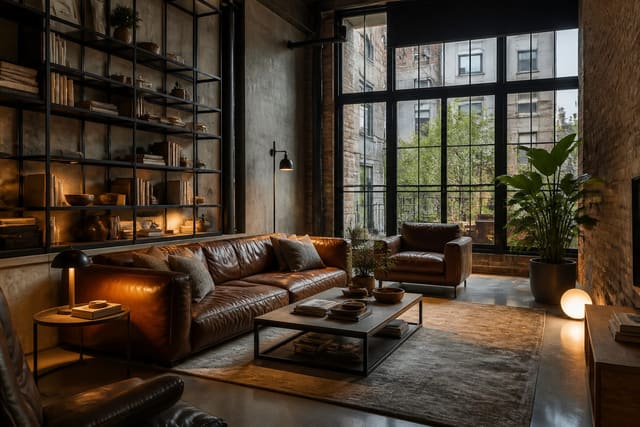
For material-heavy styles like raw metal, leather, or concrete, compare results against AI industrial interior design guidance so the room doesn't become a fake loft with invented brick.
Planner5D vs other apps: which tool fits the job?
The choice depends on which decision you're making, not which app is "best." Planner5D suits structured room planning; a photo-first tool suits a fast, emotional check on style.
| Tool type | Best use | Where it disappoints | Practical read |
|---|---|---|---|
| Planner5D AI mode | Planning a concept with control over layout and structure | More setup than upload-and-transform | Good for tinkering and refining, not one-click results |
| Photo-first AI design app | Seeing your actual room restyled quickly | Can invent architecture or blur scale problems | Best for style confidence and before/after previews |
| Guided interior design AI app | Moving from inspiration to decor decisions | Less flexible for free experimentation | Useful when you want hand-holding |
| General image generator | Dramatic moodboards and material atmosphere | Ignores doors, outlets, clearances | Great for inspiration, risky for shopping |
Before assuming every AI interior app solves the same job, read the Collov AI room design review. Collov leans toward presentation and decor direction, while Planner5D asks for more user control in planning.
Common Planner5D AI mistakes to avoid
- Expecting AI to know your room. It can't sense the tight closet corner or low sill unless you make those constraints visible and check the result.
- Skipping the dimension pass. Check sofa width, bed size, table diameter, chair pullback, rug size, and cabinet depth. A living room needs 16-18 inches between sofa and coffee table; dining chairs want roughly 36 inches behind them to pass.
- Trusting style labels too much. "Modern" or "cozy" isn't enough. Name materials and limits: warm oak, linen, matte black, 8x10 rug, 84-inch sofa, no changed window size.
- Letting software hide storage. Real rooms have chargers, shoes, and mail. Add closed storage back into the plan before calling the concept successful.
How should you combine AI preview with Planner5D?
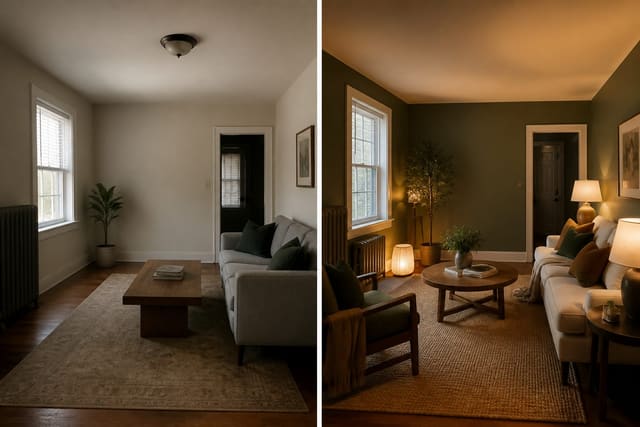
Use each tool for the decision it handles best. Start with a quick photo preview to test palette, sofa shape, or overall style direction, then move into Planner5D to test the room model and furniture positions.
Shoot the first photo from the doorway or main sightline, with floor, ceiling, windows, and current furniture visible. Don't crop out the radiator, ceiling fan, or off-center door; those facts separate a useful preview from a fantasy.
Write prompts like a design brief. For a living room, try: "use the existing 8-foot ceiling and oak floor; create a warm modern room with an 84-inch sofa, 8x10 textured rug, closed media cabinet 16 inches deep, linen curtains, warm 2700K lamps, no change to the windows." For a bedroom, specify bed size, nightstand width, headboard height, and closet location.
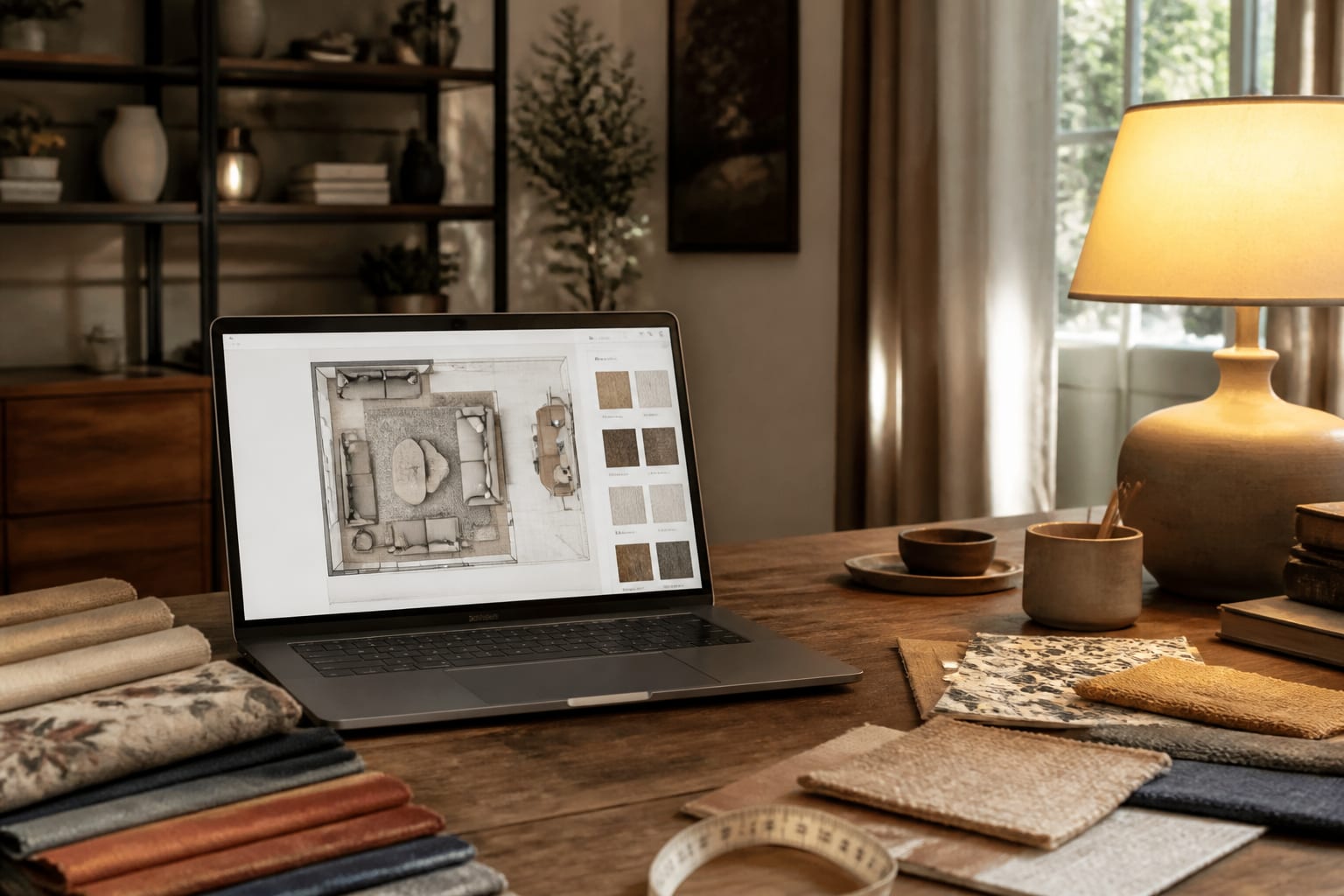
Once the photo-first direction feels right, rebuild the room in Planner5D to correct the footprint and confirm the idea survives an actual plan.
My verdict: when should you use Planner5D AI?
Use it when you want a design assistant inside a planning workflow, not when one instant image needs to make every decision. It suits people who enjoy adjusting a room after the first suggestion and anyone comparing layouts before a big purchase.
Skip it as your only tool for quick visual persuasion, like convincing a partner the living room should go darker tonight; a faster photo-based preview feels more direct there. For kitchens, built-ins, or tight studios where inches matter, Planner5D helps, but you still need measurements and possibly professional input.
Planner5D's AI features are worth using for exploration, especially when you'll refine the result manually. The risk is a polished render making you skip the boring checks. Measure the wall, protect the walkway, verify lamp locations, and treat the AI result as a strong first draft.
Frequently Asked Questions
Is Planner5D's AI mode accurate for room dimensions?
No, not by default. It generates plausible-looking layouts, but you must verify sofa width, bed size, walkway clearance, and cabinet depth against your actual room measurements before trusting the plan or buying furniture.
Should I use Planner5D or a photo-first AI app first?
Use a photo-first app when you want a fast, emotional read on style changes to your actual room. Use Planner5D when you're ready to test furniture placement, room structure, and layout logic in more detail.
Can Planner5D AI handle kitchens and built-ins?
It can help with early concepts, but tight studios, kitchens, and built-in walls depend on exact inches. Measure the space yourself and consider professional input before finalizing cabinetry or fixed millwork based on an AI-generated layout.
What's the biggest mistake people make with Planner5D AI?
Trusting a polished render without checking dimensions. Always verify the biggest furniture pieces, walkway widths, and lighting placement against your real room before treating any AI-generated layout as final.
How specific should my prompts be in Planner5D?
Very specific. Name materials, sizes, and limits, such as "84-inch sofa, 8x10 rug, matte black hardware, no change to window size," rather than vague style words like "modern" or "cozy."