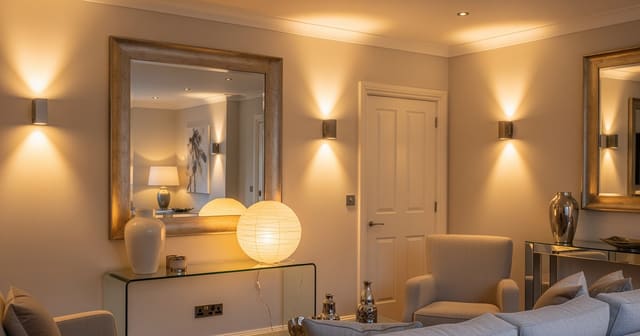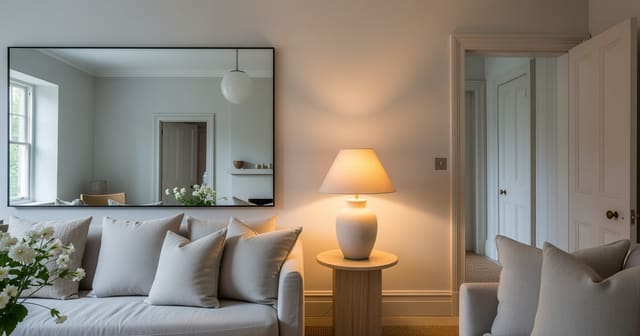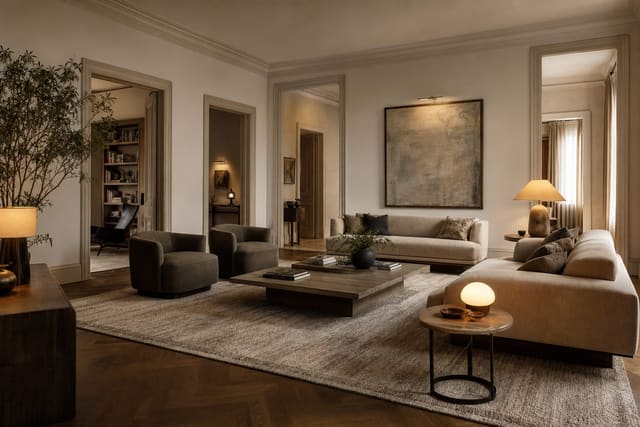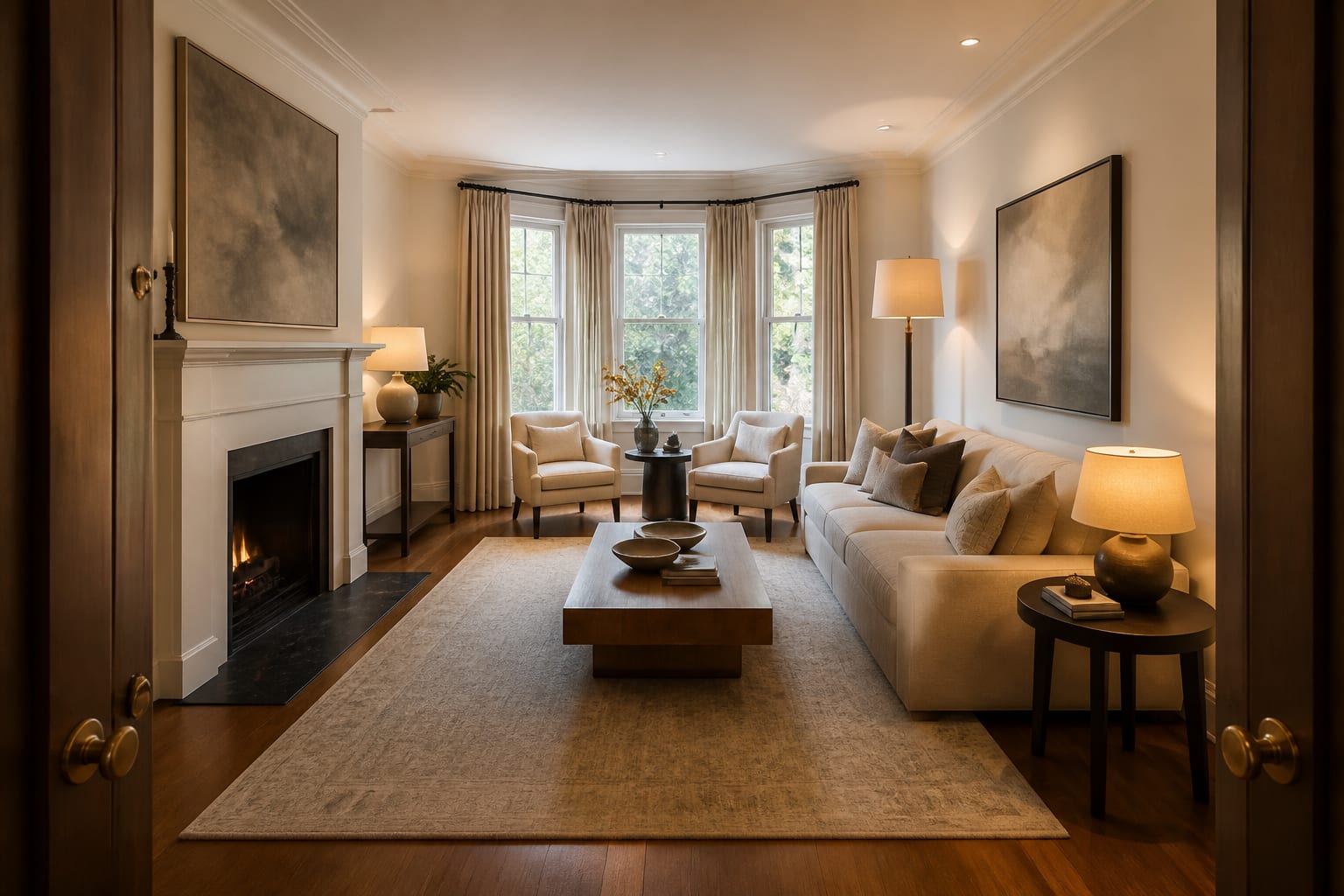
To use AI room design quickly, upload one clear photo of the room's fixed shell, state a single specific goal, generate 2-3 focused previews, and check the winning option against real measurements before buying or moving anything. Speed only works when the brief is narrow and physical, not when you ask the tool to fix everything at once.
What Should You Photograph First?
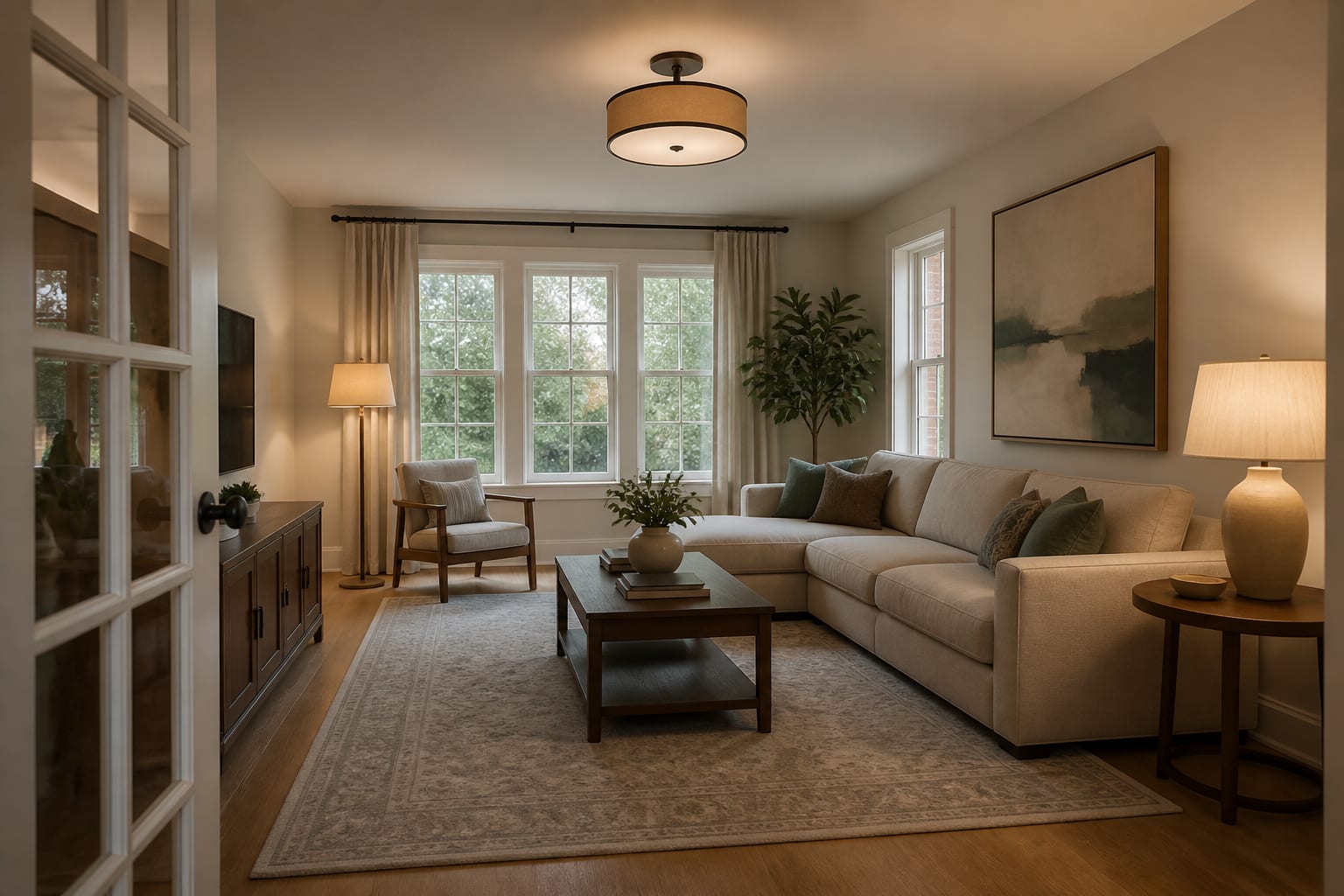
A rushed, crooked, cluttered photo forces the AI to solve the wrong problem, and the first preview becomes a cleanup fantasy instead of a design answer. Shoot the room once from a corner or doorway so the image shows two walls and the floor plane, holding the phone around standing eye height (48-60 inches) and avoiding ultra-wide distortion that stretches walls.
Open shades for daylight, turn off colored bulbs, and use warm white lamps near 2700K-3000K if the room is too dark to shoot without help. Clear only clutter unrelated to the design problem; keep the sofa, bed, table, rug, windows, and storage pieces that control the plan. If glare is an issue, place mirrors only where they reflect a window or lamp, the same logic behind using mirrors to amplify light in flat-feeling rooms.
What Is the 5-Minute Workflow?
Set a timer if you tend to spiral. The goal isn't to finish the room in five minutes; it's to get one useful visual answer without turning the process into a mood-board swamp.
- Upload the cleanest photo first. A 4:3 crop that preserves corners, floor, ceiling, and main wall teaches the AI the room's architecture better than a close-up of one piece.
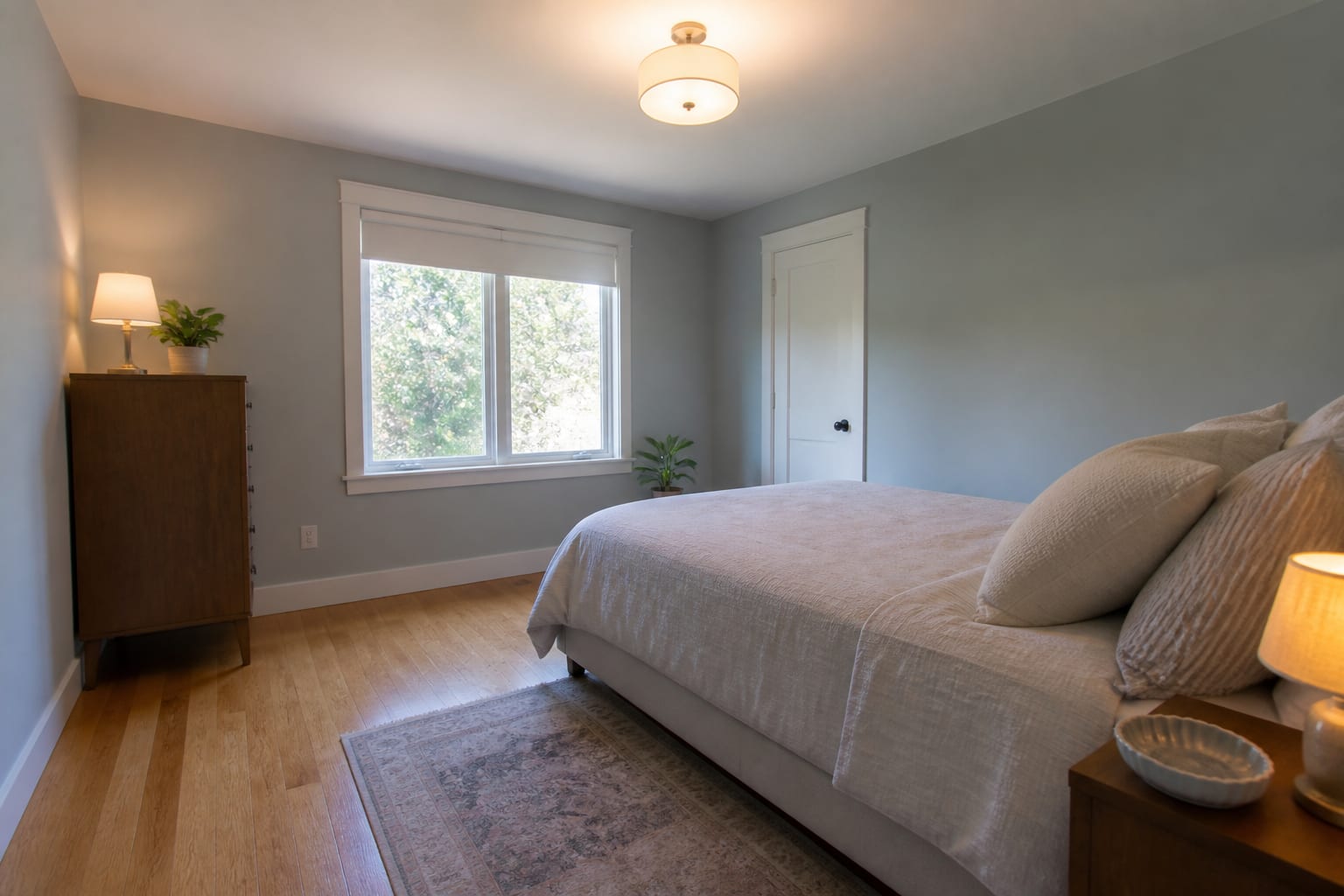
- Name the non-negotiables. Example: "Redesign this 11x13 bedroom, keep the queen bed, oak floor, white trim, and 8-foot ceiling; make it calmer with warm walls and better lamps, no new flooring."
- Ask for one outcome. Pick paint, layout, a rug, storage, or lighting, not all five in the same pass.
- Generate 2-3 versions. Keep one close to the current layout, one bolder style test, and one that solves the practical friction, like a bigger rug or clearer walkway.
- Verify the winner with measurements. Keep 30-36 inches for main circulation, 16-18 inches between sofa and coffee table, test an 8x10 or 9x12 rug with painter's tape, and confirm curtains can hang 4-8 inches above the casing without falling short of the floor.
If the room has too many openings, protect paths before decorating walls; a guide to fixing rooms with too many doorways helps you prompt for circulation first.
What Mistakes Waste the First Preview?
The most common failure is asking for a beautiful room when you actually need a decision about scale, light, storage, or permission. Beauty is too vague for a five-minute test; friction is easier to solve.
- Requesting a full makeover risks the AI replacing pieces you meant to keep. State what stays before asking for anything new.
- Uploading a dark, crooked photo invites the model to invent brightness or finishes that aren't real. Reshoot level, with curtains open and lamps on.
- Trusting rendered scale can hide oversized furniture. Tape the footprint of any sofa, table, or bed the preview shows before deciding it fits.
- Picking the prettiest version ignores the daily problem. A striking wall color doesn't fix a chair that needs 36 inches to pull back.
- Ignoring rental limits wastes the preview on paint or drilling you can't do. Say upfront that you need freestanding, plug-in, or removable solutions.
A good first preview should make the next physical test obvious. If you can't tell what to measure or move after seeing the image, the prompt was too decorative.
How Does AI Design Help You Decide Faster?
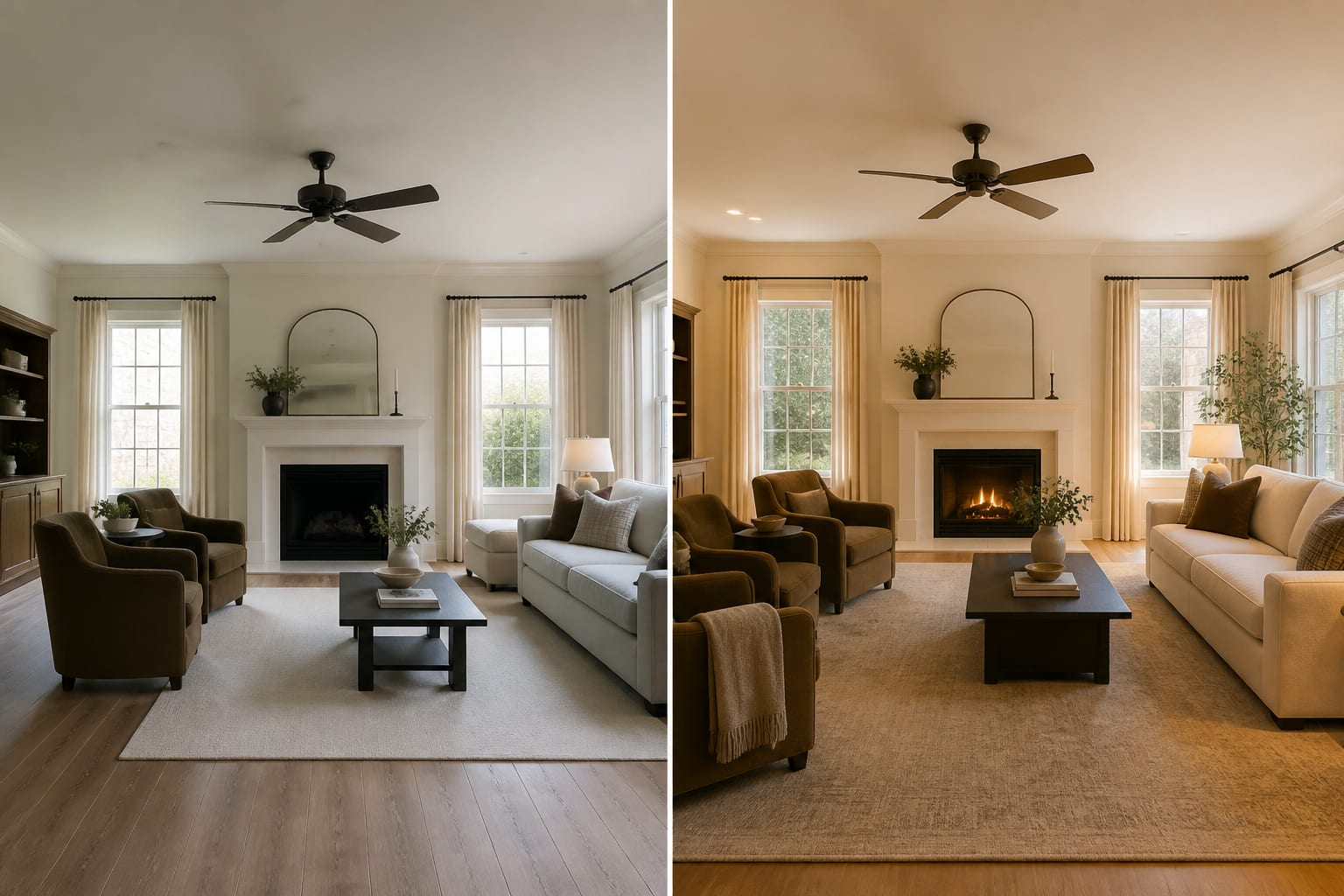
AI design works best when it turns a vague irritation into a visible comparison. Upload the room, preview a few targeted directions, and notice which version fixes the actual problem: gloom, awkward traffic, an undersized rug, or furniture that never belonged together. For fixing light without repainting, pairing this with tips on faking natural light in any room covers what an AI render alone can't.
For a north-facing bedroom, a useful comparison might test mushroom paint, warm white walls, and clay-toned textiles while keeping the same bed. For a rental living room, it might test a 9x12 rug and plug-in lamps without touching paint or flooring. The preview isn't the final authority; it's the fast draft that tells you where to put your tape measure.
Frequently Asked Questions
Can AI room design really work in five minutes?
Yes, but only for one decision at a time. Upload one clear photo, ask for a single outcome like layout or color, and generate 2-3 versions. Trying to solve color, layout, storage, and lighting in one pass slows you down and produces a vaguer, less useful preview.
What's the biggest mistake people make with AI room design?
Asking for a full style makeover instead of naming what must stay. The AI may replace furniture, floors, or finishes you intended to keep, so specify non-negotiables like "keep the oak floor and queen bed" in your first prompt.
How many AI preview versions should I generate?
Stick to 2-3. One can preserve your current layout, one can test a bolder style, and one can target the specific friction point, such as a bigger rug or clearer walkway. More than that becomes overwhelming without adding useful information.
Do I need to measure anything after getting a preview?
Yes. Verify circulation space (30-36 inches), sofa-to-coffee-table clearance (16-18 inches), and rug size (8x10 or 9x12) with painter's tape before buying. AI renders can flatter scale, making oversized furniture look like it fits when it doesn't.
Can AI room design work for rentals?
Yes, if you state the limits upfront. Ask for freestanding storage, plug-in lamps, removable curtain rods, washable rugs, and peel-and-stick samples instead of paint or drilling, since AI defaults to permanent upgrades unless told otherwise.